Using the Web GUI
Create and manage LXC containers through the web interface.
Prerequisites: A registered account and at least one configured site. See Getting Started for account setup.
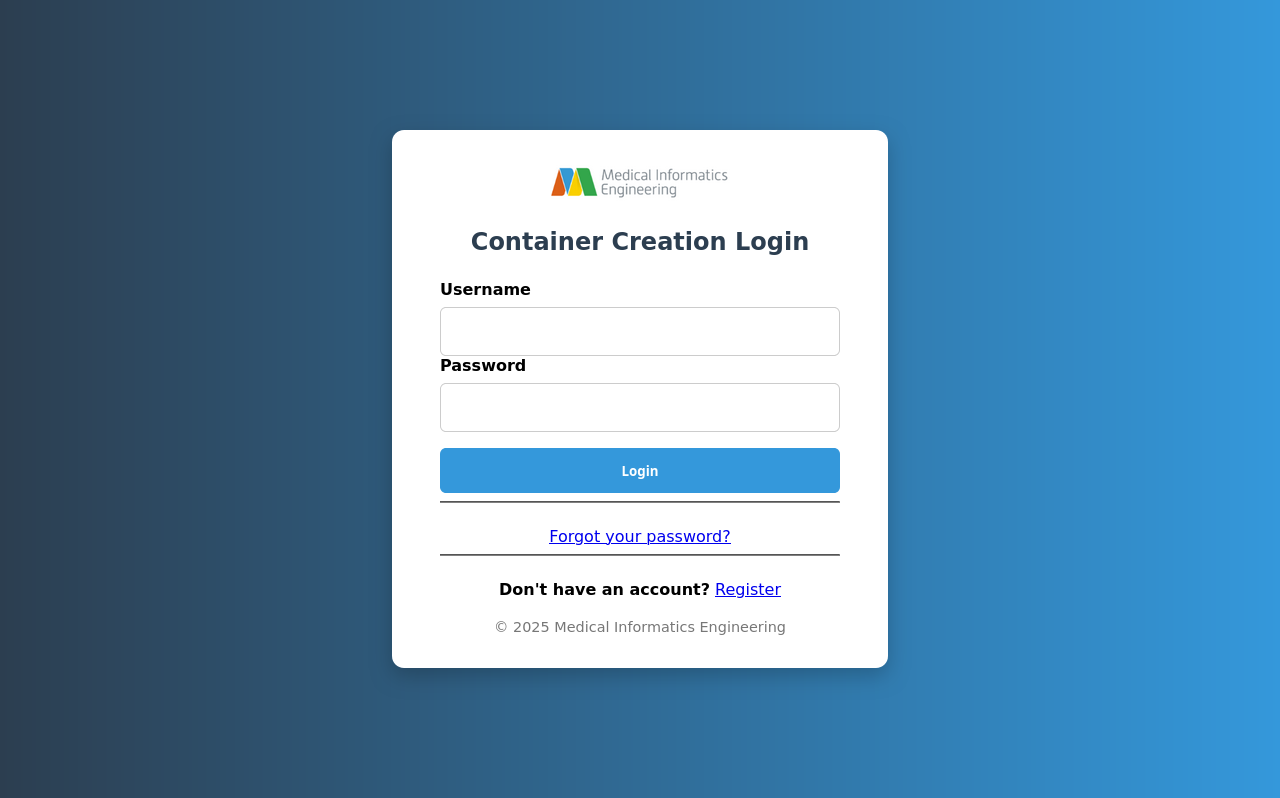
Logging In
Navigate to the web interface and enter your credentials.
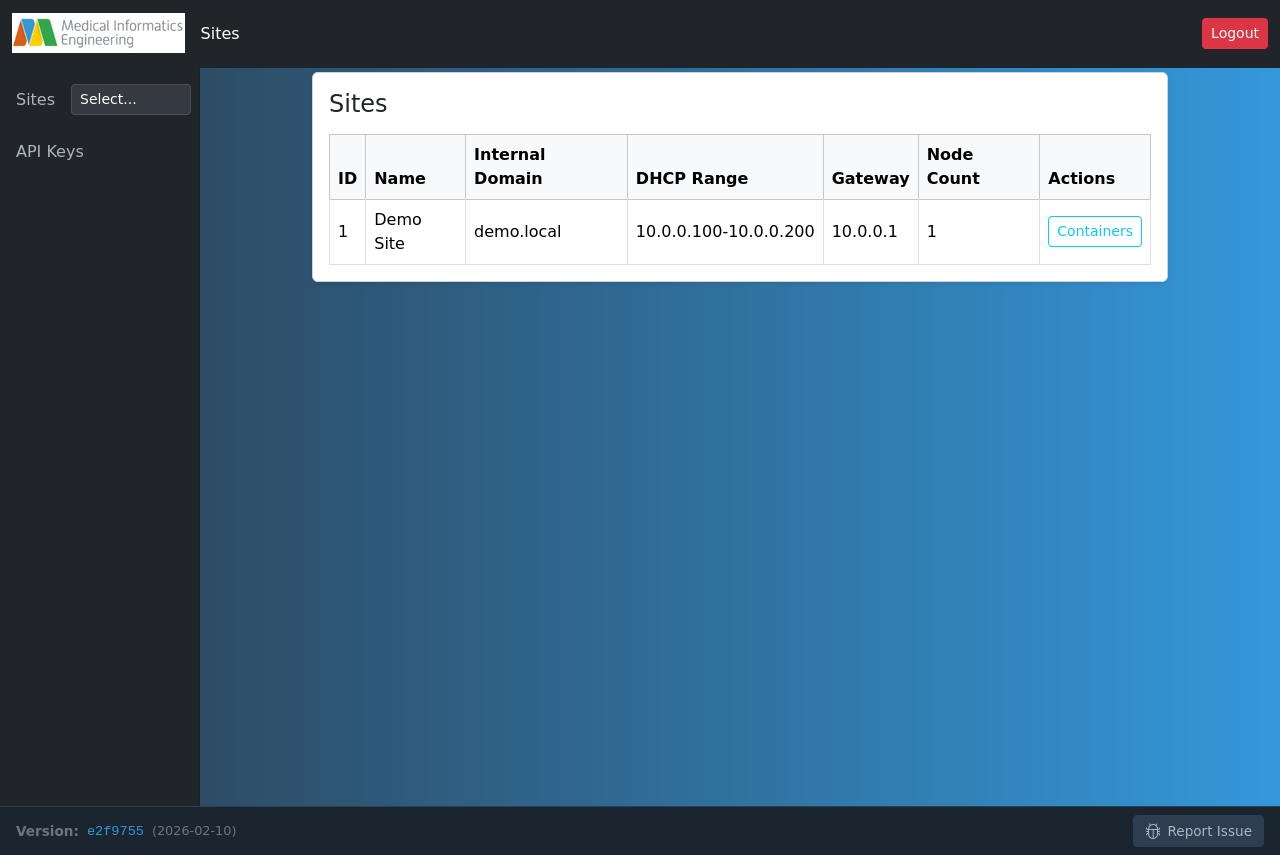
Selecting a Site
Select a site before creating containers — the site determines the Proxmox cluster and network. Click Containers to view containers for a site.
Creating a Container
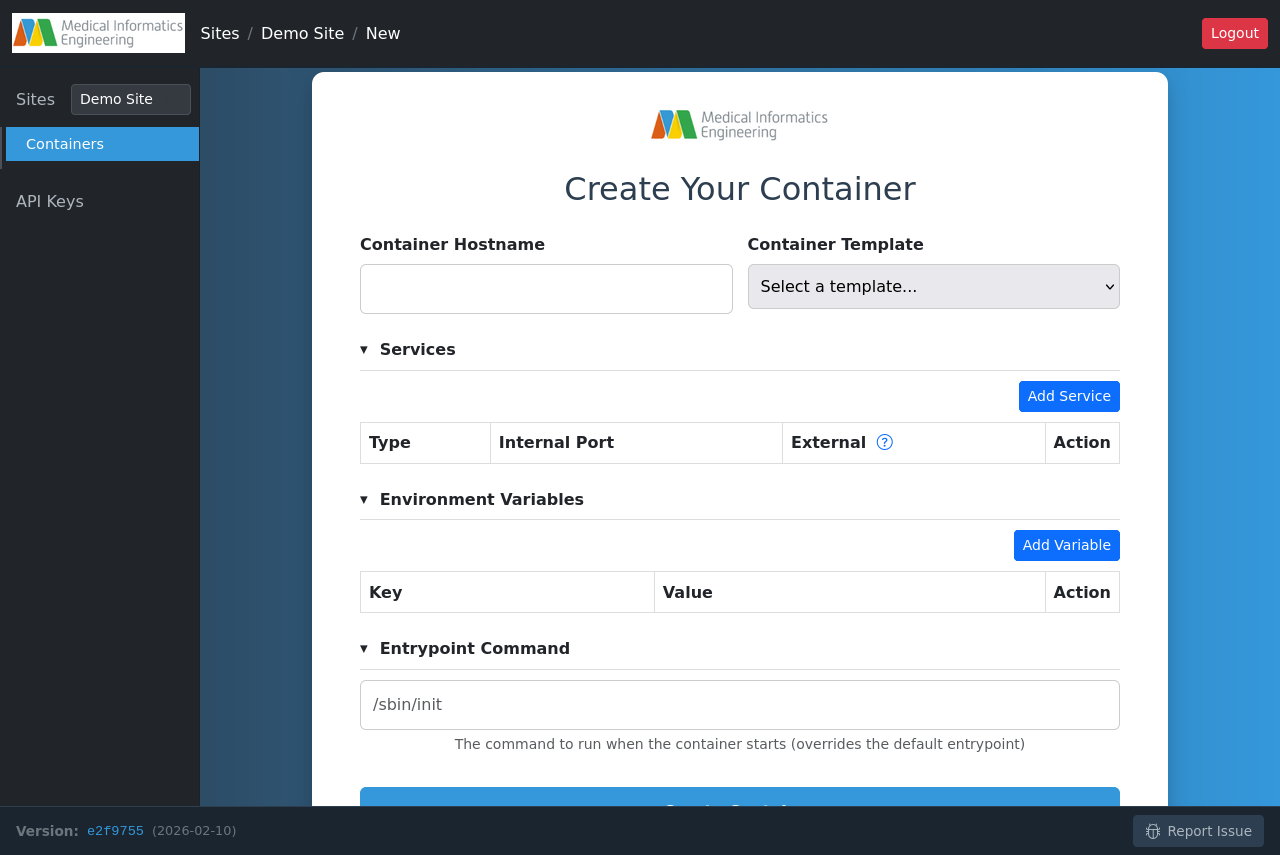
Click New Container from the containers list.
Hostname
Unique name (lowercase letters, numbers, hyphens). Containers within the same site can reach each other at <hostname>.<internal domain>.
Template
Select a standard image or choose "Custom Docker Image..." for any registry image. Temlates auto-populate services, environment variables, and entrypoint.
- Debian 13:
ghcr.io/mieweb/opensource-server/base:latest - NodeJS 24:
ghcr.io/mieweb/opensource-server/nodejs:latest - Custom: Full registry path (e.g.,
docker.io/library/nginx:latest)
Services (Optional)
Expose container ports. Click Add Service, select type (HTTP/TCP/UDP), enter internal port. HTTP services also allow selecting an external domain name, defaulting to the hostname of the container. TCP and UDP services will be autoassigned an external port.
You'll need to add a TCP service with internal port 22 in order to expose the SSH connection to your container.
Environment Variables (Optional)
Key-value pairs written to /etc/environment in system containers. See Building Custom Images for details on systemd integration.
Entrypoint Command (Optional)
Default: /sbin/init for system containers.
Changing the entrypoint for provided templates or derived images is not supported. This should only be used to add arguments to standard Docker images.
Submit
Click Create Container. You'll be redirected to a page to watch the creation job progress. After the creation finishes successfully, please allow up to 1 minute to allow the load balancer to reconfigure before your services are accessible.
Accessing Your Container
SSH: ssh -p <SSH-PORT> <username>@<hostname>.<domain>
HTTP: https://<hostname>.<domain>
Proxmox Console: https://os.mieweb.org:8006
Managing Containers
- Start/Stop/Restart/Force Stop via the Actions column
- Edit to modify environment variables, entrypoint, or services (restart required)
- Delete to permanently remove (irreversible — back up data first)