VSCode Remote SSH Setup
Connect VSCode directly to your Proxmox container for remote development.
Prerequisites: VSCode installed, a running container with SSH access.
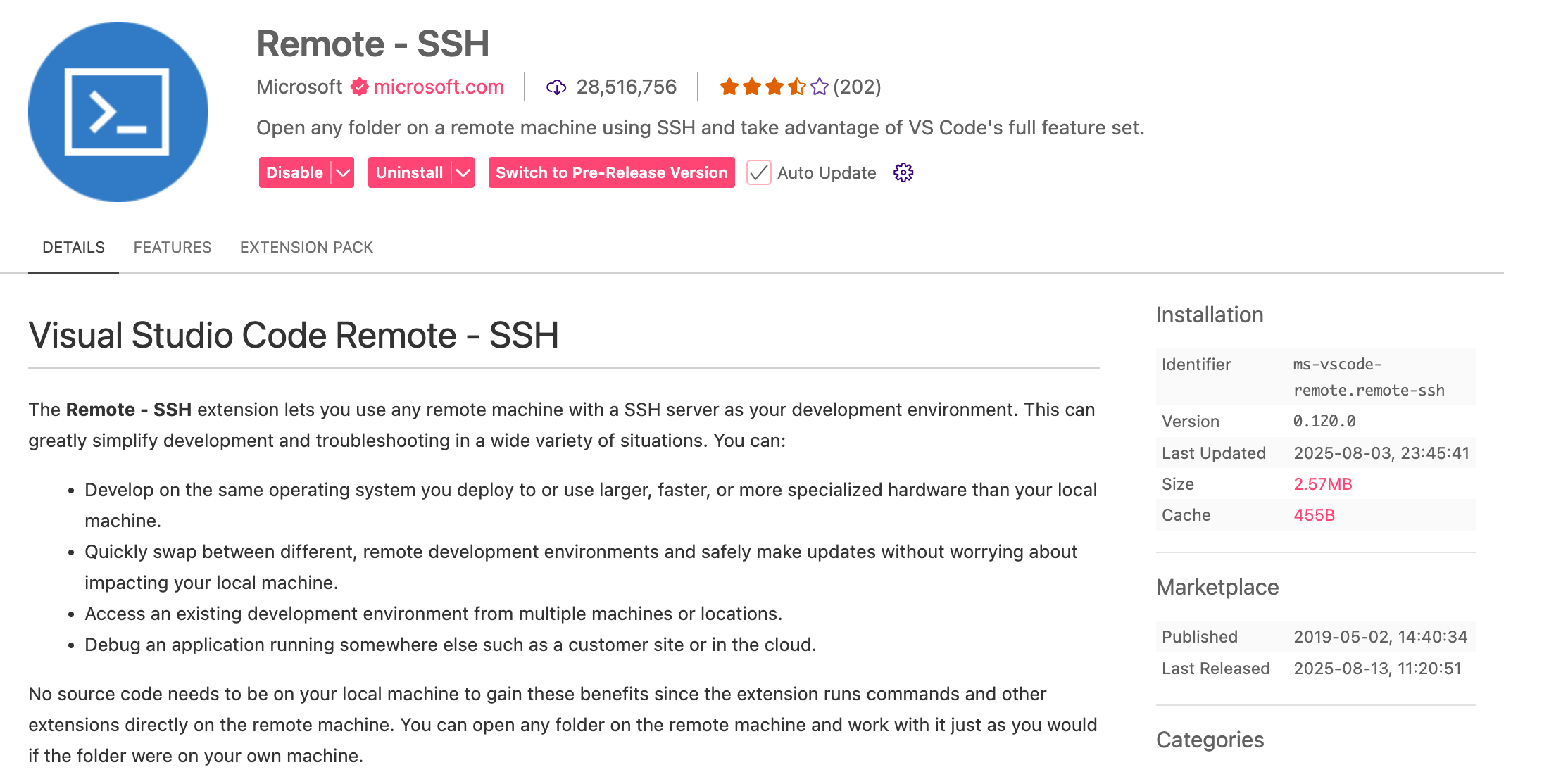
1. Install Remote SSH Extension
In VSCode, open Extensions (Ctrl+Shift+X), search "Remote - SSH" by Microsoft, and install it.
2. Configure SSH
Open Command Palette (Ctrl+Shift+P) → "Remote-SSH: Open SSH Configuration File". Add:
Host my-container
    HostName <external-domain-name>
    User <your-proxmox-username>
    Port <your-ssh-port>
| Field | Description |
|---|---|
Host | Display name for this connection |
HostName | The same domain name used to access the web UI |
User | Your Proxmox username |
Port | SSH port from container output |
For multiple containers, add separate Host entries with different names and ports.
3. Connect
Command Palette → "Remote-SSH: Connect to Host..." → select your host → choose "Linux" → accept the host key on first connection.
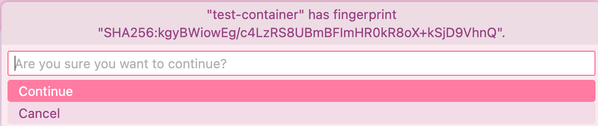
Authentication: If you provided a public key during container setup, connection is automatic. Otherwise, enter your Proxmox password when prompted.
4. Open Project
Once connected: Open Folder (Ctrl+K Ctrl+O) → navigate to your project directory (typically /root/ or /home/<username>/).
If you can't access /root, run sudo su in the VSCode terminal using your Proxmox password.
5. Develop
The integrated terminal (Ctrl+`` ) runs inside the container. Use your Proxmox password for sudo.